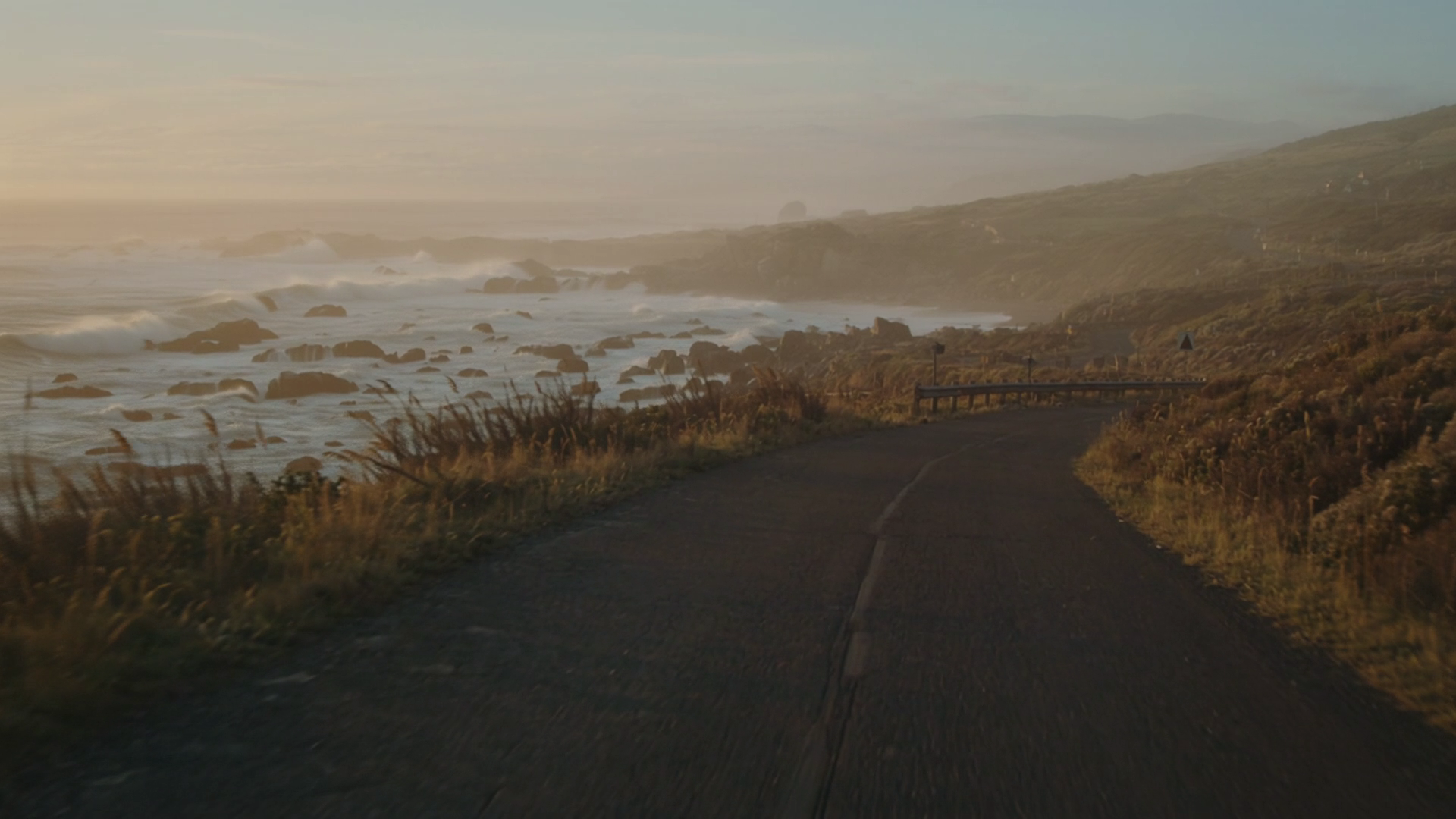
Most text-to-video models start moving pixels before they understand the shot. You write a careful prompt, hit generate, and the result drifts — the horizon wobbles, the subject slides out of frame, and the motion feels accidental rather than directed. Luma Ray 3.2 — now available in Studio AI — takes a different route. It reasons about composition, motion, and scene logic before a single frame renders, so your shorts feel like someone was behind the camera. Whether you're cutting an ad, a social spot, or a review reel for internal sign-off, Ray 3.2 gives you a clip that follows the brief instead of fighting it.
[Try Luma Ray 3.2 in Studio AI]
🎬 What is Luma Ray 3.2?
Luma Ray 3.2 is a text-to-video and image-to-video model available inside Studio AI. Its focus is directed motion — clips where framing stays stable, movement reads cleanly, and the scene holds together the way you intended. Instead of rendering first and hoping the shot survives, Ray 3.2 plans the scene logic up front, which helps on product reveals, narrative beats, and any spot where jitter or drift would break the illusion of a deliberate take.
You can start from a written prompt or animate an approved still, then choose duration, aspect ratio, and resolution up to 1080p before you export. The result is a short clip your team can actually sign off on — ready for ads, social feeds, or review cuts.
🎥 Where Luma Ray 3.2 Performs Best
Three capability areas set Ray 3.2 apart when you need tighter creative control.
Reasoning-driven motion that follows your brief
Ray 3.2 plans scene logic before pixels move. For product reveals, narrative sequences, and spots where a drifting horizon or jittery subject would undercut the shot, this means the motion tracks your intent — a directed take rather than a lucky one. If your brief depends on stable, readable movement, this is the difference that shows up on screen.
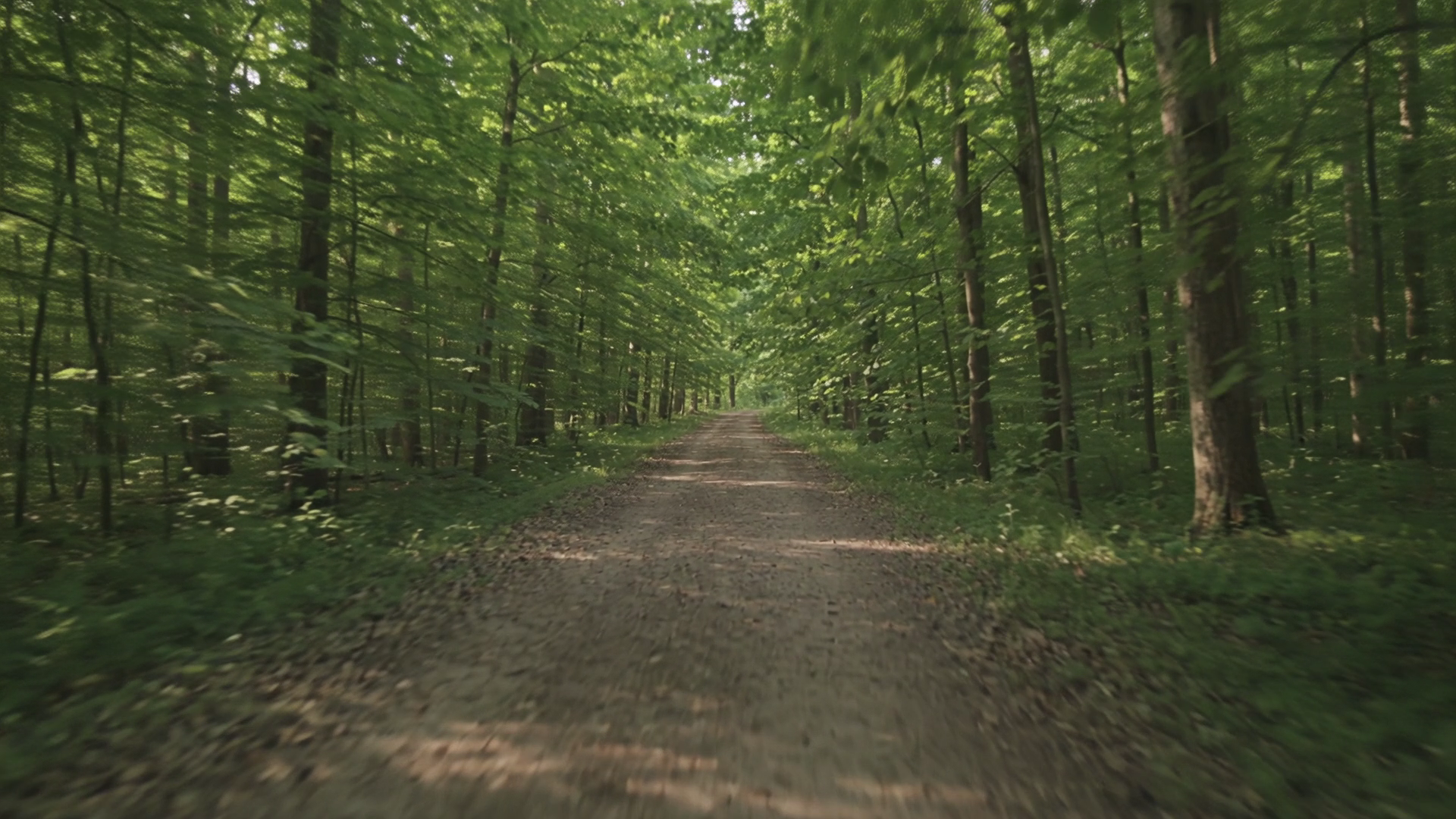
Start from a prompt or an approved still
Use text-to-video for net-new scenes, or image-to-video when your art direction is already locked. The same model family keeps motion and lighting cohesive across both paths, so a clip you animate from a hero still feels of a piece with one you generate from words. When the text-to-video form exposes reference image fields, you can lock subject and style without pasting long descriptions into every prompt.
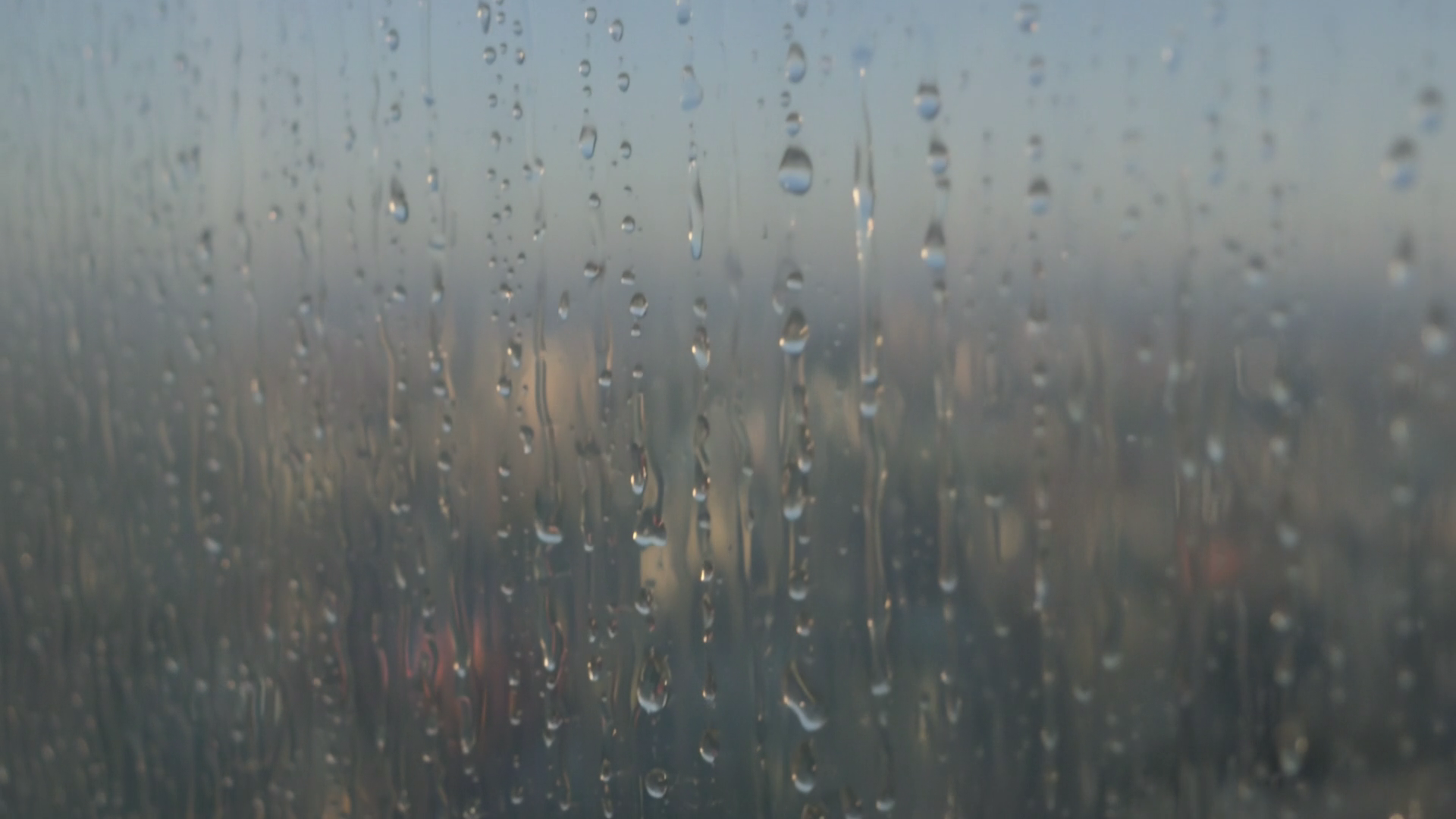
Flexible formats up to 1080p
Choose aspect ratios that span vertical feeds, standard frames, and ultrawide banners, pick a 5- or 10-second duration, and select a resolution tier up to 1080p. Shorter clips can support seamless looping when your placement needs it — handy for background loops and social hero moments — while longer 10-second outputs are built for a full beat rather than a loop.
[Generate a video with Luma Ray 3.2]
🛠️ How to Use Luma Ray 3.2
The workflow in Studio AI is three steps.
- Tell your vision — Write what should happen on screen: subject, action, camera language, and mood. If your art direction is already set, switch to image-to-video and start from a hero still. Upload your own reference image, or pull one directly from the MotionElements stock library of over 26 million videos, music tracks, sound effects, and images with a single click — no download, no re-upload. When the text-to-video form offers reference image fields, add a still to lock subject and style.
- Choose your settings — Select aspect ratio, duration, and resolution from the options shown in the tool. Ray 3.2 supports vertical, standard, and ultrawide frames, 5- or 10-second clips, and resolution tiers up to 1080p. Decide your placement before you render so the frame shape matches where the clip will live.
- Preview and download — Play the render, check that motion and framing hold, then download. If the pacing or composition needs tightening, adjust the prompt or settings and run another pass. You can also carry a frame forward into image-to-video to extend the shot into the next beat.
[Start generating with Luma Ray 3.2]
✍️ Prompting Tips for Better Results
Ray 3.2 rewards clear direction. A few practices that tend to sharpen the output:
- Direct the shot, not just the subject — Name the camera move, the framing, and the pacing: "slow push-in on the product, locked horizon, soft rack focus." The model reasons about scene logic, so give it a scene to reason about.
- Lock style with a reference still — When the text-to-video form exposes reference image fields, use them instead of stacking long style paragraphs into every prompt. It keeps subject and look consistent across takes.
- Match aspect ratio to your placement before you render — Vertical for feeds, ultrawide for banners, standard for review cuts. Changing it after the fact means a new render.
- Choose duration by intent — Reach for 5 seconds when a loop or quick beat will do, and 10 seconds when the shot needs room to breathe. Enable seamless looping on shorter clips when the placement calls for it.
🎯 Is Luma Ray 3.2 Right for Your Project?
Ray 3.2 is built for clips where directed, readable motion matters as much as the look. It's a strong fit if your work includes:
- Product reveals and ad spots where stable framing and deliberate camera moves carry the message
- Narrative beats and concept reels that need motion to follow a plan, not wander
- Social content across vertical, standard, and ultrawide placements, up to 1080p
- Internal preview cuts your team needs to sign off on before heavier post work
If your priority is the fastest, lightest draft, compare Ray 3.2 and the other text-to-video models in Studio AI before committing — they all live side by side, so you can test the same prompt across models in one tool. Ray 3.2 biases toward directed motion and production-grade framing — it's the right choice when that control is worth the render.